
Needle Tool

|
|
To use the Needle tool to change any object in the drawing to the attributes of this tool, simply click on the object with the Needle cursor. If you get an undesired effect, you may always choose Undo from the Edit menu. To assign attributes to this tool, select the Needle tool from the WildTools palette. Press and hold down the Option key. The cursor will change to the Eyedropper cursor. Click on an object in the drawing. The Needle tool will 'adopt' the attributes of the option-clicked object. --or-- You may also assign attributes to the tool with the Attributes menu or Defaults window as you would with any other PowerCADD tool.
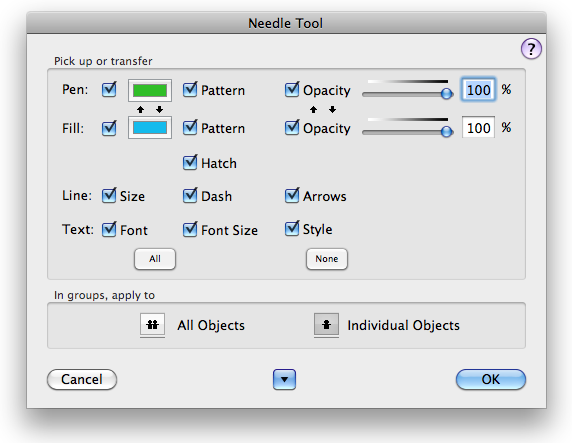
In the tool's dialog, you select the behavior of the Needle tool. If all of the Pen, Line and Fill choices are selected, then all of these attributes are picked up or transferred by the Needle tool. If you want to change only the line size, for example, turn all other options off and leave Line Size selected. With such a setting, the other attributes (pen color, pen pattern, fill color, fill pattern, etc.) are not affected. Groups and external objects can be handled two ways. If the 'In Groups, Apply to All Objects' option is selected, then all objects within the group will be changed. If the 'Individual Objects' option is selected, then only the object clicked on within that group or External object will be changed. This is a very powerful tool, and it allows you to change the appearance of individual objects within groups and External objects without ungrouping the group or destroying the external object. The Needle tool can set individual objects in Parallel Objects.
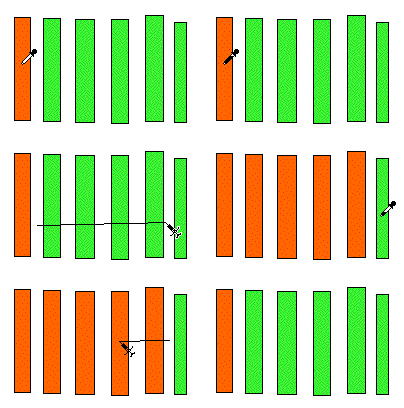
The Needle tool can be used with 'finger technology' to set any number of objects by dragging a line across them. Magic Needle Cursor. The Needle Tool has a Magic Needle cursor action to change the attributes of all objects in the drawing that match the object that you click on. Hold down the Shift Key to get the Magic Needle cursor and click on an object. The tool will then change all matching objects in the drawing.
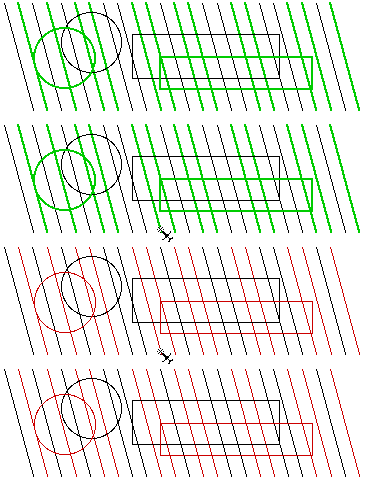
Changing all green two-point objects to red one-point objects The purpose of this is to allow you to change the pen size, color, or other attributes for all objects that are an exact match for the object that you click on. Let's say you want to change all objects with a pen color of green and a pen size of two points to a one millimeter pen size. Set the Needle tool to a one millimeter pen size and for the tool to change only the pen size, then hold down the Shift key and click on a green, two point line and all green, two point objects in the drawing will be changed in one setting.
Text Attributes. The Needle tool has ability to pick up and put down text font, font size and font styles for text objects, dimension line and dimension arcs. In the case of the Magic Needle cursor action, these objects will only be changed if there is an exact match with the original object that you click on, that is, not only must the attributes match, but you must click on a text object to change all text objects, etc.
To use, simply click on any object with a dash and then drag up or down. |

Go back to WildTools
 Needle Tool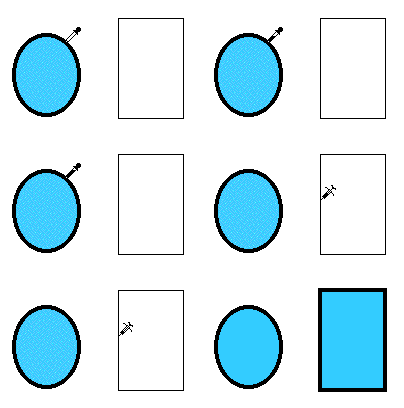
 Dash Adjuster Tool